 AI CEO Lab
How to Set Up Viktor in Slack: Your First Week
Install Viktor, give it your business, set the rules, and get one useful job done this week. Works the same way in Microsoft Teams.
Viktor is an AI employee that lives inside Slack or Microsoft Teams. You message it like a teammate, and it does the work in your connected tools instead of handing you a draft to copy.
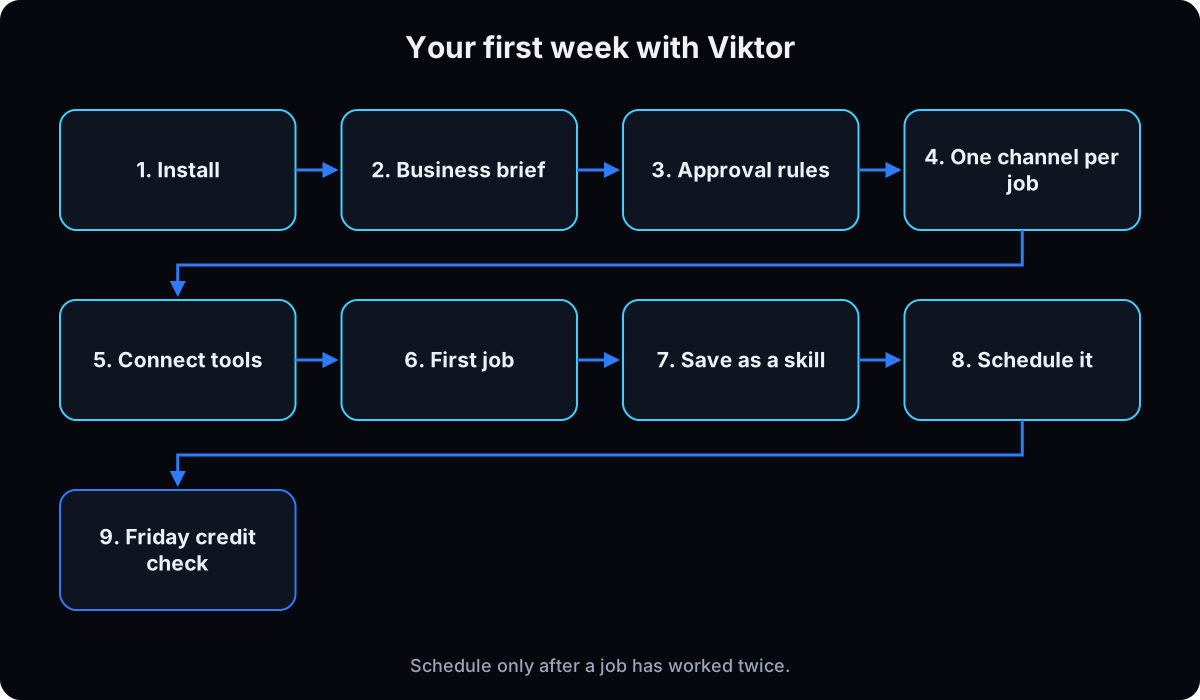
Most people install it, ask it 20 random things, burn their trial credits and decide it's hit or miss. This walkthrough does the opposite: one channel, one job, one rule set, and a schedule only after the job has worked twice.
I run 6 Viktor agents across my agency. New to Viktor? Read the next section first. Already installed? Skip to step 2.
What you have by the end
Not concepts. Things that exist on your machine when you close the tab.
- Viktor installed and introduced to your business
- Written rules for what it must ask you before doing
- One channel per job, so answers come back focused
- A first job done, saved as a skill, and scheduled once it works twice
Start here: what Viktor is and how it works in Slack
If you've used ChatGPT or Claude, 3 differences explain Viktor.
It's a member of your workspace
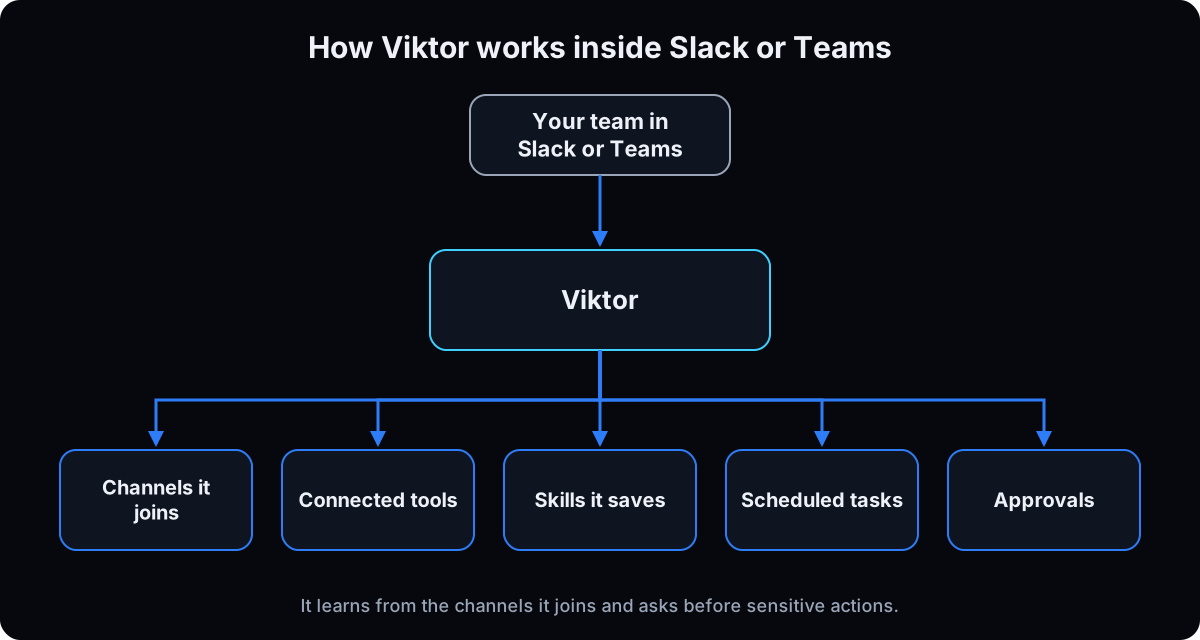 After install, Viktor shows up as a member of your Slack or Teams workspace. You can message it directly or invite it to channels, per Viktor's getting started guide.
It does the work in your tools
Viktor connects to 3,200+ tools, most with one-click sign-in, including Google Ads, Meta Ads, HubSpot, Notion and Google Drive (integrations). Ask it to pull last week's ad spend and it pulls it, instead of telling you how.
It learns your business as it goes
Viktor reads the channels it joins and writes down what it learns as skills. It runs scheduled tasks, and it asks for your approval before sensitive actions like sending email (viktor.com).
The catch
It bills in shared credits, so vague asks and unchecked schedules get expensive. The pricing guide covers how to keep it predictable.
| Term | What it means |
|---|---|
| Workspace | Your Slack or Teams account |
| Channel | A Slack or Teams room; give Viktor one per job or client |
| Integration | A tool Viktor can sign in to, like Google Ads or Notion |
| Skill | Saved steps for a job Viktor repeats |
| Scheduled task | A job Viktor runs on a timer |
| Approval | Viktor pausing to ask before a sensitive action |
| Credits | What Viktor bills in; the whole workspace shares them |
Day 1 to day 7
1. Create your account and add Viktor to Slack
 Sign up at my affiliate link (adds $150 in trial credits) or at app.viktor.com. Choose We use Slack or We use Teams, then authorize it for your workspace.
Why: if your workspace requires admin approval for new apps, an admin needs to approve Viktor before it appears, so check that first.
2. Introduce your business in a DM
Open a direct message with Viktor and paste the brief below. Add your offers, clients and the tools you use.
Why: everything it does later starts from this context, and it saves you re-explaining the business in every request.
Here's my business: [what we do, who we serve].
My team: [names and roles].
Clients or accounts: [list, or 'see the client channels'].
Tools we use: [ads, CRM, docs, reporting].
How I like updates: short, what needs me first, no filler.
Never make up numbers. If you can't reach a tool, say so and stop.
3. Write your approval rules before connecting anything
Viktor asks before sensitive actions, per its integrations page. Add your own rules on top, in writing, before it can reach your tools.
Why: a clear rule list means you approve the right things instead of clicking yes on everything.
Always ask me before you:
- send an email or message outside this workspace
- change an ad, budget or campaign
- edit or delete anything in the CRM
- post anything public
- spend money or start a trial
Drafts and reports don't need approval.
4. Give it one channel per job or client
Create a channel for one recurring job, like #weekly-reports, or one channel per client. Invite Viktor to that channel only.
Why: focused channels give it focused context. For an agency, a channel per client keeps each client's facts and requests separate.
5. Connect only this week's tools
Connect the 2 or 3 tools your first job needs. Most use one-click sign-in. If you manage several ad accounts or clients, Viktor can hold multiple connections of the same tool and keeps them separate (integrations).
Why: less access to manage, and fewer places for a request to go wrong.
6. Hand it one small first job
Pick a job you know how to judge, like a weekly summary from one tool. Use the template below and read the result closely.
Why: you learn how it works before it does anything that matters.
In this channel, every time I ask: pull [metric] from [tool] for [date range].
Compare it to the previous period.
Give me 3 bullets: what changed, why it might have changed, what to check.
If data is missing, say which and stop.
7. Save it as a skill once it's right
When the output is what you wanted, ask Viktor to save the steps as a skill for this job.
Why: next time it follows the saved steps instead of working them out again, which is faster and uses fewer credits.
8. Schedule it after it works twice
Run the job by hand on 2 different days. If both come back right, ask Viktor to run it on a schedule and post it in the channel.
Why: a broken job on a schedule fails every day, quietly, and spends credits each time.
Every Monday at 9am my time, run the [job name] skill and post the result in this channel. If a tool can't be reached, post that instead of guessing.
9. Check credits on Friday
Note what the week used and which job used the most. Rewrite or pause anything expensive that nobody reads.
Why: a weekly look catches a leaking schedule after 5 days instead of at the end of the month. How to keep Viktor's bill predictable.
If this happens, do this
Every one of these has happened to me or to someone I set this up for.
| Failure | Fix |
|---|---|
| Viktor doesn't show up after install | Check whether your workspace needs admin approval for apps |
| Answers mix up clients | Move each client into its own channel and invite Viktor to each |
| It asks you to approve everything | Rewrite your rules so drafts and reports don't need approval |
| The same job comes back different each week | Save the working version as a skill and run that |
| Credits dropped fast | Pause schedules, write briefs for each job, re-measure a week |
| It reports numbers that look wrong | Ask which tool and date range it used; add 'never make up numbers' to your brief |
The tools I use for this
| Tool | What it is for here | |
|---|---|---|
| Viktor † | The AI employee in Slack or Teams. My link adds $150 in trial credits. | Start free |
| Viktor getting started | Viktor's own install steps. | Read |
| Viktor integrations | Which tools it connects to and how sign-in works. | Read |
Related guides
- Viktor AI review: my 6-agent roster and what I hand it.
- Viktor AI pricing: credits, real costs, and keeping the bill down.
- AI agent guardrails: the same approval thinking for any agent.
- Viktor vs Claude: Claude Tag, Cowork and Viktor for a team.
- AI for marketing agencies: rolling Viktor out client by client.
Questions people ask
How do I add Viktor to Slack?
Sign up, choose We use Slack, and authorize Viktor for your workspace. It then appears as a member you can message or invite to channels.
Does Viktor work in Microsoft Teams?
Yes. Choose We use Teams at signup. Viktor supports Slack and Teams on every plan, per its pricing page.
Can Viktor read all my Slack channels?
Viktor learns from the channels it joins. Invite it only to the channels where you want it working.
How long does Viktor setup take?
Install and your business brief take about 30 minutes. Plan on a week before scheduling anything, because each job should work twice by hand first.
Can an agency use one Viktor for multiple clients?
Yes. Give each client its own channel, and connect separate accounts per client where a tool supports it. Viktor keeps multiple connections of the same tool separate.
The free skill
It walks you through the first week: the business brief, approval rules, channel plan, first job, first skill and first schedule.
---
name: viktor-setup
description: Walks a team through its first week with Viktor in Slack or Microsoft Teams. Business brief, approval rules, one channel per job or client, first job, first skill, first schedule, Friday credit check. Trigger on "set up viktor", "viktor in slack", "how do I start with viktor".
---

# Viktor Setup

Get Viktor doing one useful job in the first week without burning credits or granting access carelessly.

## Day 1 to day 7, in order
1. **Install.** Sign up, choose "We use Slack" or "We use Teams", authorize the workspace. If apps need admin approval, get it first.
2. **Business brief.** DM Viktor: what the business does, team, clients, tools, how updates should look, never make up numbers.
3. **Approval rules.** Before connecting tools, write what it must ask first: outside emails, ad or budget changes, CRM edits, public posts, spending.
4. **Channels.** One channel per recurring job or per client. Invite Viktor only there.
5. **Tools.** Connect only what the first job needs. Separate connections per client where the tool allows.
6. **First job.** Something the user can judge: pull a metric, compare to last period, 3 bullets, stop if data is missing.
7. **Skill.** When it's right, ask Viktor to save the steps as a skill.
8. **Schedule.** Only after the job works on 2 different days.
9. **Friday check.** Credits used, top job by credits, rewrite or pause anything nobody reads.

## Rules
- One job at a time until the first one is scheduled.
- Drafts and reports don't need approval; anything outside the workspace does.
- Never invent numbers. If a tool can't be reached, say so and stop.

## Done when
Viktor posts one scheduled, useful update per week in its own channel, and the user knows what it costs.
Want Viktor set up across your team and clients?
We install Viktor, build the channel plan, write the skills and schedules, and hand you a team that reports in on its own. That's what we do inside AI CEO Lab.