 AI CEO Lab
How to Use Nano Banana for Photo Editing in Gemini
Edit your own photos in the Gemini app with Nano Banana: where the image tool lives, free vs paid, the keep list that stops it changing your whole photo, and copyable prompts for business photos.
You upload a photo, ask for one small change, and Nano Banana hands back a different room, a different face or a sunny street with rain painted on top. Or you copy a tutorial's prompt and get a worse result than they did.
This guide fixes that. You get where the image tool sits in the Gemini app, what's free and what needs a paid plan, the prompt shape that keeps everything you didn't mention in place, and copyable edits for the photos a business uses: a cleaned-up team photo, a background for a landing page, a product on a counter.
I'm a doctor who runs an ad agency, not a designer or an engineer. New to Nano Banana? Start with the next section. Already editing in Gemini? Skip to step 4 and add a keep list.
What you have by the end
Not concepts. Things that exist on your machine when you close the tab.
- A plain-English picture of what Nano Banana is and which version you're using
- Your first edit done in the Gemini app with a fill-in template
- A keep list you reuse so edits stop changing the whole photo
- Copyable prompts for a photo cleanup, a landing page background and a product shot
- Watermark and consent rules set before anything gets posted
- An optional path to run the same edits from Higgsfield or Google's API later
Start here: what Nano Banana is, in plain English
If you've only typed questions into ChatGPT or Gemini, 5 ideas make the rest of this page click.
What Nano Banana is
Nano Banana is Google's name for the image models inside Gemini. You type what you want, or upload a photo and say what to change, and it returns a new image.
Since Google's 26 February 2026 update, Nano Banana 2 is the default image model in the Gemini app. People with a paid Google AI plan can also rerun an image with Nano Banana Pro, per Google's Gemini image help page (checked 15 September 2026).
Editing is not the same as generating
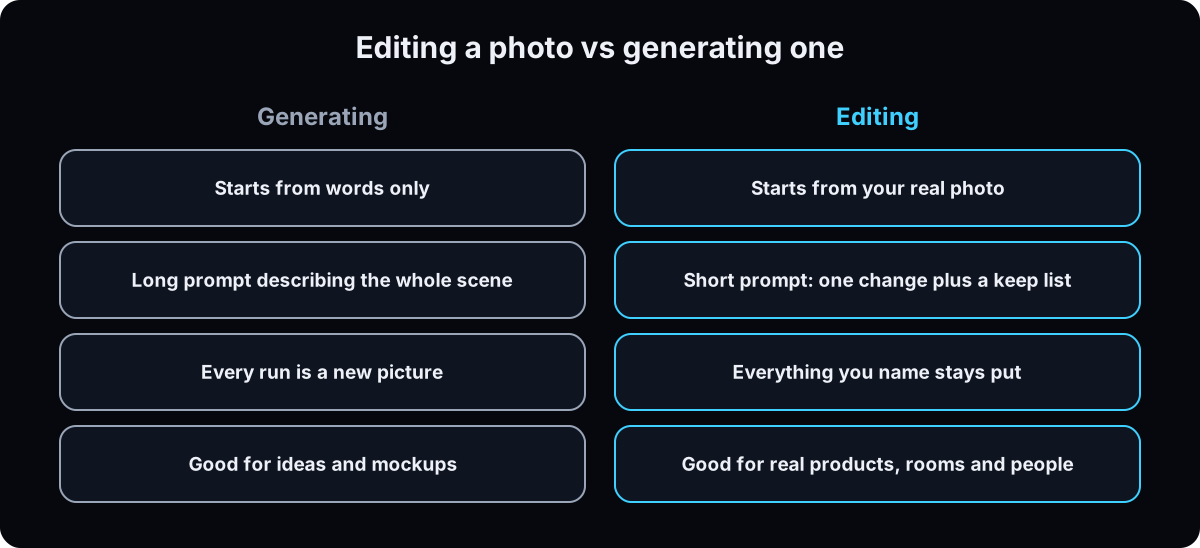 Generating makes a picture from words. Editing starts from a photo you already have and changes one part of it.
For a business, editing is usually the safer job. The product, the room and the people are real, so the result stays close to the truth. A generated clinic or storefront is a picture of a place that doesn't exist. If you want generated shots that pass as photos, read how to make AI images look real.
How an edit works
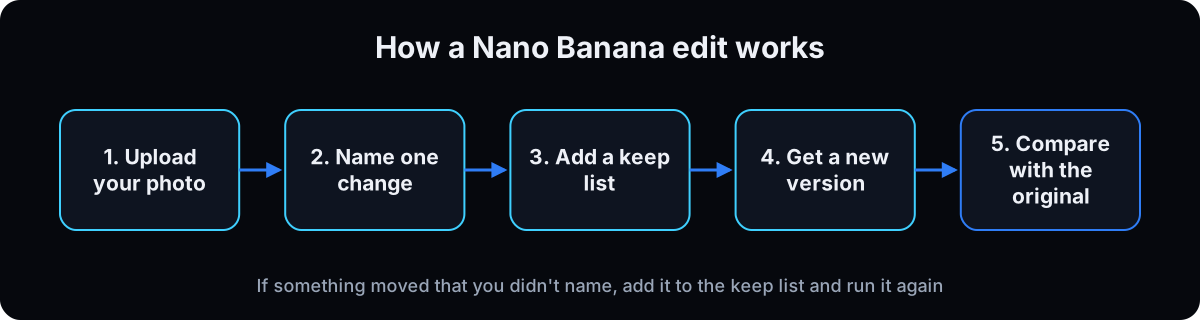 Every edit has 3 parts: the source photo, one change, and a keep list of what must not move. Google's own prompt template for targeted edits follows the same shape: change only the element you name, and keep everything else exactly the same, preserving the original style, lighting and composition.
The model doesn't edit pixels the way Photoshop does. It redraws the whole image with your change in it. That's why anything you don't name can shift.
Which versions exist
Four models share the name, per Google's image generation docs. The table below lists each one with its model ID, where you get it and what Google's API charges per image (checked 15 September 2026). In the Gemini app you don't pick an ID: you get Nano Banana 2, and paid plans can redo an image with Pro.
If a tutorial prompt worked for someone and not for you, check the version first. Most tutorials from 2025 were recorded on the legacy model or on Pro, not on today's default.
The catch: drift, safety filters and the watermark
Drift. Because the model redraws the image, faces, text and small objects can change a little with every turn. After 4 or 5 edits on the same image, compare against the original, not the last version.
Safety filters. Gemini refuses some edits under Google's Generative AI Prohibited Use Policy. Users complain about it: one r/ImagineAiArt thread from 10 September 2026 calls the safety guidelines extremely strict.
The watermark. Google's docs say all generated images include an invisible SynthID watermark. The visible sparkle is a separate setting you can turn off in most countries, but Google's watermark help page says that setting doesn't affect SynthID or Content Credentials. Turning off the sparkle doesn't make an image count as a real photo.
| Version | Model ID | Where you get it | API price per image | Good for |
|---|---|---|---|---|
| Nano Banana 2 | gemini-3.1-flash-image | Default in the Gemini app on every plan | $0.045 at 0.5K, $0.067 at 1K, $0.101 at 2K, $0.151 at 4K | Everyday edits. Up to 10 object, 4 character and 3 style references |
| Nano Banana Pro | gemini-3-pro-image | Redo with Pro on Google AI Plus, Pro and Ultra | $0.134 at 1K or 2K, $0.24 at 4K | Text on signs and labels, fine detail. Up to 6 object and 5 character references |
| Nano Banana 2 Lite | gemini-3.1-flash-lite-image | The API, and a speed option in the Gemini app | $0.0336 at 1K (1K only) | Fast, cheap drafts |
| Nano Banana (legacy) | gemini-2.5-flash-image | The API only, being retired | $0.039 | Nothing new. Google lists 2 October 2026 as its earliest shutdown date |
| Term | What it means |
|---|---|
| Nano Banana | Google's name for the image models in Gemini |
| Gemini app | Google's AI assistant, on the web at gemini.google.com and on phones |
| Source photo | The original image you upload and want to change |
| Edit prompt | The words that describe the one change you want |
| Keep list | The things you name that must stay exactly the same |
| Drift | Small unwanted changes that build up over several edits |
| Reference image | An extra image you attach so the model can copy a product, logo, face or style |
| Labeled board | One image holding several references, each with a text label under it |
| Redo with Pro | The Gemini menu option that reruns an image with Nano Banana Pro on paid plans |
| Google AI plan | Google's paid Gemini subscriptions: AI Plus, AI Pro and AI Ultra |
| SynthID | Google's invisible watermark inside every image its models make |
| Media Watermark | The Gemini setting that turns the visible sparkle mark on or off |
| Content Credentials | Signed data attached to a file that records it was made or edited with AI |
| Safety filter | The check that refuses edits breaking Google's use policy |
| Aspect ratio | The shape of an image, such as 1:1 square or 9:16 vertical |
| Resolution (1K, 2K, 4K) | Roughly how many pixels wide the image is: about 1,000, 2,000 or 4,000 |
| API | A way for software to use the model directly, billed per image |
| Model ID | The exact name developers use to call one version, such as gemini-3.1-flash-image |
| Higgsfield | A paid image and video platform that runs Nano Banana, with a command-line tool |
| Credits | Higgsfield's prepaid units, spent per image |
From your first photo to business-ready edits
1. Open Gemini and check what your plan gets
Go to gemini.google.com or open the Gemini app and sign in with a personal Google account.
Per Google's image help page, you must be 13 or older to generate images and 18 or older to edit them. Work and school accounts may have different restrictions. Google's plans page lists image generation with Nano Banana 2 on every plan, including no plan at all, and Redo with Pro on AI Plus, AI Pro and AI Ultra. Google doesn't publish a fixed daily image number on that page and says media generation uses more of your overall limit (checked 15 September 2026). Numbers you see on other sites are guesses or out of date.
Why: if you hit a limit or a missing button, you'll know whether it's your plan or your prompt.
2. Set your rules before you edit anything
Decide these once, before the first photo goes in.
Only upload photos you have the rights to. Google's image docs say you must have the necessary rights to any images you upload.
Get consent for real people. Staff, clients and customers agree before their face goes into an AI edit. Health businesses: never put a patient's face, body or chart into an edit, and never put words, products or results on a real patient.
Leave the watermark rules alone. You can switch off the visible sparkle under Settings, then Media Watermark, per Google's watermark help page. It's not available on work or school accounts, and in India, South Korea and Vietnam it needs AI Ultra. Don't crop or paint out a mark to pass an edit off as an untouched photo.
Why: the edit takes 10 seconds. A client finding their face in an ad they never approved takes a lot longer to fix.
My image rules (paste at the top of a chat):
- Only edit photos I own or have permission to use.
- No real patient or client in any edit without written consent.
- Never add a claim, result, price or endorsement to a real person.
- Never remove or hide a watermark.
- Change one thing per message and tell me anything else that moved.
3. Do one small first edit with a fill-in template
 Start with a photo that has nothing at stake, like your desk or your storefront.
In a new chat, open the tools menu and choose Create images, as Google's Nano Banana page describes it. On a computer, Google's help page also lists Images in the sidebar. Upload your photo with the + button, then paste the template below with your blanks filled in. Menu names shift between app versions, so use the closest label.
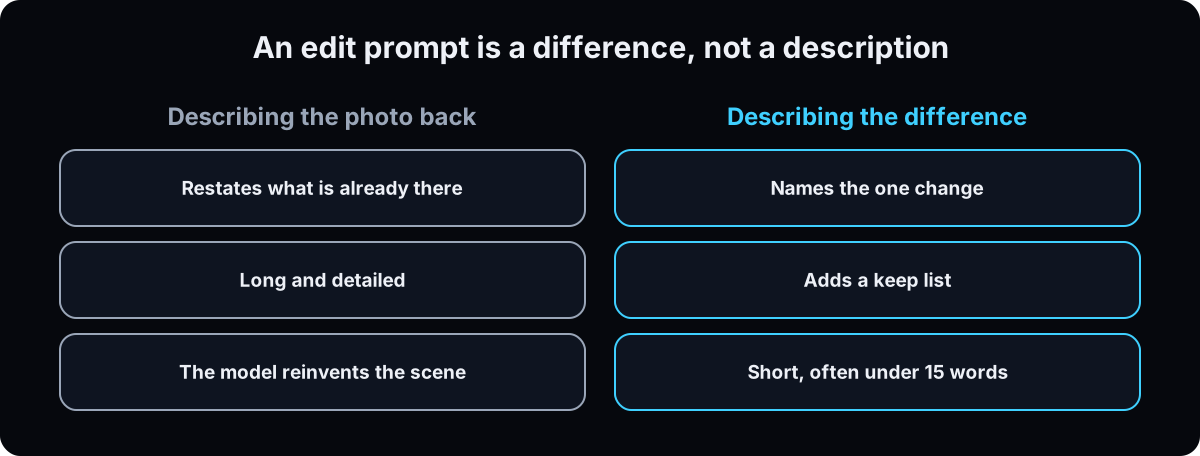
Don't describe the photo back. The model can see it. Name the difference.
Why: a low-stakes first edit shows you how much the model moves things before you try it on a photo that matters.
Change only the [one thing] to [what you want instead].
Keep everything else exactly the same: [the people, faces, text, logos, layout, framing].
Preserve the original lighting and composition.
4. Say what to keep
This is the rule that fixes most bad edits. Keep the same face, hairstyle, skin tone and body. Keep the logo exactly. Keep the text on the sign. If you don't name it, the model may change it.
Build one standing keep list per photo type and reuse it: team photos, product shots, rooms. In one tutorial I read, a pose change came back with different clothes. Adding the outfit to the keep list fixed it.
Why: this is the answer to the most common complaint, "why did it change my whole photo?"
5. One edit per turn, and 3 rules that beat long prompts
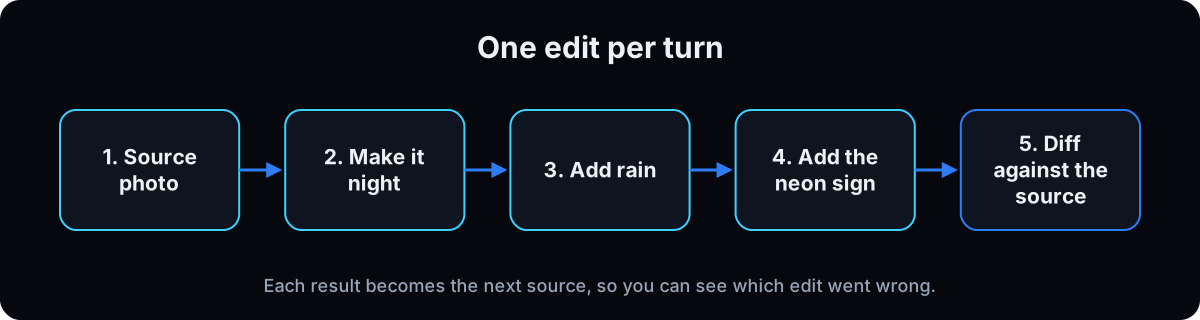 Make it night. Then add rain. Then add the sign. Each result becomes the next source. 3 edits in one prompt gives 3 chances to go wrong and no way to tell which one did.
Name the cause, not the effect. "Make the shadows soft" tends to miss. "Change the time of the entire scene to dawn" gives you the soft shadows.
Substitute rather than delete. In one tutorial, "erase the first pumpkin" removed only its face. "Turn the first pumpkin into a basketball" worked. Give the model something to put in the gap.
Say the consequences. Rain means clouds, wet ground, fewer people and coats. Say all of it, or you get a sunny street with rain drawn on top.
Why: short, single edits are easier to check and easier to undo.
6. Label references before a multi-object edit
When several things must land in one image, put them on one board first with a plain text label under each: PRODUCT, LOGO, SIGN. Attach the board and point at the labels in the prompt. Loose files tend to get the wrong object in the wrong place. The same board works for AI product photography.
Each version has a reference limit. Per Google's docs, Nano Banana 2 takes up to 10 object images, 4 character images and 3 style images. Pro takes up to 6 objects and 5 characters (checked 15 September 2026).
Why: a label turns "put this on that" into an instruction the model can't misread.
7. Use the business prompts, then Redo with Pro when text matters
Copy the prompts in the section below for the 3 jobs most businesses start with: cleaning up a real photo, swapping a background for a landing page, and putting a product on a counter.
When the edit includes words, like a sign, a label or a menu board, and Nano Banana 2 gets the letters wrong, use Redo with Pro. Per Google's page, paid users open the three-dot menu and choose Redo with Pro. Google says Pro adds detail, especially for text and infographics.
For landing pages, keep the source's proportions unless you're cropping on purpose, and check the result at phone size. Our landing page guide covers where the image goes.
Why: Pro costs more on the API and uses more of your plan, so save it for the images where detail shows.
8. Compare with the original, then check it before you post
Put source and result side by side. Same face? Text unchanged? Hands, logos and background objects still there? Does the light make sense in that room? The realism checks in making AI images look real apply here too.
To confirm what an image is, upload it to Gemini and ask Was this created with Google AI? Google announced that SynthID check in the Gemini app on 20 November 2025.
Why: the result is the ad your customer sees. A changed logo or a sixth finger costs more trust than the edit saved.
9. Later, optional: run edits from Higgsfield or Google's API
Skip this until the Gemini app feels easy. This step uses a terminal, the text window where you type commands.
Higgsfield runs the same models with settings the Gemini app hides, like picking the version and resolution. Its tool names differ: nano_banana_flash is Nano Banana 2 and nano_banana_pro is Pro. On my own account on 8 September 2026, Pro cost 2 credits at 2k and 4 at 4k, and Nano Banana 2 cost 1.5 at 1k. Prices change, so run higgsfield generate cost first, which spends nothing. It also has a relight tool that takes settings instead of a prompt, useful when a lighting prompt misses twice.
Google's API bills per image with no free tier for these models, per Google's pricing page (checked 15 September 2026). If you or a developer build on it, use gemini-3.1-flash-image or gemini-3-pro-image. The legacy gemini-2.5-flash-image has an earliest shutdown date of 2 October 2026 on Google's deprecations page.
Why: once you edit dozens of photos a week, an agent working from a folder beats uploading one at a time. The skill file at the bottom of this page is written for that.
higgsfield model list --image | grep -i banana

higgsfield generate cost nano_banana_pro --image ./photos/storefront.jpg --resolution 2k

higgsfield generate create nano_banana_pro \
  --prompt "Change only the sky to a clear evening sky. Keep the building, sign text and cars exactly the same." \
  --image ./photos/storefront.jpg --resolution 2k --wait
Starter prompts
Paste these as written. They are short on purpose, because the long ones drift.
Remove the cables and the trash can from the floor. Keep the people, their faces and the room exactly the same. Make the photo brighter, like the room is lit by daylight from the windows. Keep everyone's face, skin tone and clothes exactly the same. If a removal fails, substitute instead of deleting: Replace the trash can with a small green plant in a white pot. Straighten the picture frame on the back wall. Change nothing else.
Change only the background to a bright, clean [office / clinic reception / studio] with soft daylight. Keep the person, their face, hair, clothes and pose exactly the same. Keep natural lighting on the person and keep their shadow. Two turns often beat one: Replace the background with plain light grey. Now change the light grey background to a bright modern office, slightly out of focus. If the location has to be a real place, attach a photo of it and label it LOCATION rather than naming it.
Attach the product photo and a photo of the counter, or one labeled board. Place PRODUCT on COUNTER, front and center, label facing the camera. Keep the product's shape, colors and label text exactly the same. Match the counter's lighting and add a soft shadow under the product. Then, one edit at a time: Add a small plant slightly out of focus behind the product. Change nothing else. Change the aspect ratio to 4:5 for a feed post. Keep the product centered.
Name the cause, never the effect. This tends to miss: make the shadows soft This works: change the time of the entire scene to dawn Change the time of the entire scene to early evening with the lights on inside. Keep the building and sign exactly the same. Weather is a scene change, so say the consequences: Make it rain: add heavy clouds, wet reflective pavement, fewer people, and umbrellas on the ones who remain.
Change the text on the sign from [old text] to [new text]. Keep the same font, size, color and finish. Change nothing else. Large, clear lettering comes back better than small print. If the letters come out wrong twice, use Redo with Pro rather than a third wording. Avoid apostrophes in big display text. Write IS NOT rather than ISN'T.
Put this jacket on the person. Keep their face, hair, body and pose exactly the same. Match the colors, shadows and fabric so it looks worn, not pasted. When a pose change keeps changing the clothes, add them to the keep list: Change the pose to arms crossed, in the exact same outfit and shoes.
Lay the references out on ONE board with a plain text label under each, then point at the labels. Place PRODUCT in my right hand, LOGO on the tote bag, and SIGN on the wall behind me. Keep my face and the room exactly the same. On a flat-lay of several items, name each one rather than saying all of these: Show a person wearing the shirt, the trousers, the hat and the bag.
I am editing the attached photo. Do not describe the photo back to me. Write the edit as one change plus a keep list. The one change I want is: [the change]. The keep list names everything that must not move: [faces, hair, skin tone, clothes, text on signs or labels, logos, layout, framing]. Phrase everything positively: empty street rather than no people. If the change is about light, name a time of day, weather or light source. If the change is a removal, also give me a substitution version. If the change has consequences elsewhere in the scene, list them. Keep the original aspect ratio. Give me the prompt to paste. After I show you the result, list anything that changed that should not have.
If this happens, do this
Every one of these has happened to me or to someone I set this up for.
| Failure | Fix |
|---|---|
| It changed my whole photo | Name one change and add a keep list. Never describe the photo back |
| A tutorial's exact prompt gave me a worse result | They were likely on another version. Most 2025 tutorials used the legacy model or Pro |
| Gemini refused a normal business edit | Remove names of real people or brands and describe the change plainly. If it still refuses, the edit may fall under Google's use policy |
| The face looks a bit like someone else after a few edits | That's drift. Go back to the original photo and make the change in one turn with a keep list. See consistent AI characters |
| An erase left a smudge or half an object | Substitute. Turn it into something else |
| The letters on the sign came out wrong | Use Redo with Pro, keep the text short and avoid apostrophes |
| Several reference files, wrong object in the wrong place | Put them on one labeled board and point at the labels |
| No Media Watermark setting | Work and school accounts don't get it, and some countries need AI Ultra |
The tools I use for this
| Tool | What it is for here | |
|---|---|---|
| Gemini app | Where you edit by hand. Nano Banana 2 on every plan, Redo with Pro on paid plans. | Open |
| Gemini image help | Google's current steps, age rules and model list for images in Gemini. | Docs |
| Gemini API image docs | Model IDs, reference limits and prompt templates for each Nano Banana version. | Docs |
| Higgsfield | Runs Nano Banana from a command line with version, resolution and relight settings. Optional, step 9. | Open |
| Claude | Writes the change and keep list, builds the labeled board, and compares the result with the original. | Open |
Your first two weeks of edits
- Day 1: 10 edits by hand in Gemini. 5 cleanups or lighting changes, 3 background swaps and 2 product shots from the prompts above. Done when you have 10 before-and-after pairs and know which prompt shape worked first time.
- Days 2 to 5: the keep list and the board. Write one standing keep list for each photo type you use, and do one multi-object edit with a labeled board. Done when edits stop moving things you didn't ask for.
- Days 6 to 14: the pipeline, if you want it. An agent runs edits from a folder with the skill file below and returns a side-by-side check with each one. Done when you say the change and get a checked result without opening an app.
- Keep the originals. Save every source photo untouched. Each edit drifts a little, and the original is what you go back to.
Questions people ask
Is Nano Banana free?
Yes, in the Gemini app. Google's plans page lists image generation with Nano Banana 2 even without a Google AI plan, with usage limits that Google doesn't publish as a fixed number. Nano Banana Pro through Redo with Pro needs AI Plus, AI Pro or AI Ultra. Google's API has no free tier for these models (checked 15 September 2026).
How do I use Nano Banana in Gemini?
Open gemini.google.com or the Gemini app, choose Create images from the tools menu, upload your photo with the + button and type the change you want. Name one change and a keep list, like "Change only the background to a bright office. Keep the person exactly the same." You must be 18 or older to edit photos, per Google's help page.
What are the best Nano Banana prompts for photo editing?
The best edit prompts are short: one change plus a list of what to keep. Google's own template reads "change only the [element] to [new element]. Keep everything else in the image exactly the same." Copy the cleanup, background and product prompts above, and edit one thing per message.
Nano Banana Pro vs Nano Banana 2: which is better?
Pro is the higher-detail model and Google says it's best for text and infographics. Nano Banana 2 is the default in Gemini, faster, cheaper on the API and takes more reference images (10 objects vs 6). Start on Nano Banana 2 and use Redo with Pro when letters or fine detail come out wrong.
Why did Nano Banana change my whole photo?
The model redraws the entire image each time, so anything you didn't name can move. Add a keep list (faces, text, logos, layout), make one change per message, and go back to the original photo if faces start to drift after several edits.
Can I remove the Nano Banana watermark?
You can turn off the visible sparkle in Gemini under Settings, then Media Watermark, in most countries on personal accounts. The invisible SynthID watermark stays in every image, and Google's help page says the setting doesn't affect it. Don't use watermark remover tools to pass an AI edit off as an untouched photo.
The free skill
It's the edit routine as agent instructions: consent and watermark rules first, the source photo as reference, one change plus a keep list, one edit per turn, a labeled board for multi-object edits, Redo with Pro when text matters, and a side-by-side check before anything is returned.
---
name: edit-any-image-nano-banana
description: Edits existing photos with Google's Nano Banana (Nano Banana 2 and Nano Banana Pro) in the Gemini app, or through the Higgsfield CLI when it is set up. Cleanups, background swaps for landing pages, products on a counter, relighting, fixing text on signs and labels, multi-object composites. Checks rights and consent first, writes the edit as one change plus a keep list, one edit per turn, builds a labeled reference board for multi-object edits, and compares the result against the source. Trigger on "edit this image", "clean up this photo", "swap the background", "put the product on a counter", "fix the text in this photo", "make it night".
---

# Edit Any Image With Nano Banana

You're changing one thing in a photo the user already has and leaving everything else alone. The photo is the source. The prompt is one change plus a keep list.

## Rules before any edit

- Only edit photos the user owns or has permission to use. Ask if unclear.
- No real patient, client or staff member in an edit without their consent. Never add words, claims, results, prices or endorsements to a real person.
- Never crop, blur or paint out a watermark. Every Nano Banana image carries an invisible SynthID watermark. If the user wants no visible sparkle, point them to Gemini Settings, then Media Watermark (not on work or school accounts; India, South Korea and Vietnam need AI Ultra).
- Never invent a logo or label text. Use the real file.

## Choose where to run it

1. **Gemini app (default).** Write the prompt for the user to paste. Tell them: tools menu, Create images, upload the photo with +, paste. Editing photos needs an account holder aged 18 or older. Nano Banana 2 is the default on every plan. On AI Plus, Pro or Ultra they can use the three-dot menu, then Redo with Pro, when text or fine detail matters.
2. **Higgsfield CLI (only if installed and logged in).** Check `higgsfield account status`. The source photo must be a file on disk. Run `higgsfield generate cost` with the same flags before creating; it spends nothing.
3. **Google API (developers only).** Use `gemini-3.1-flash-image` or `gemini-3-pro-image`. Don't use `gemini-2.5-flash-image`; Google lists 2 October 2026 as its earliest shutdown. The API has no free tier for image models.

Ask one question only if the change is ambiguous. Never ask what the photo shows.

## The prompt shape

1. **The change**, one sentence, plain English. Usually under 15 words.
2. **The keep list**: faces, hair, skin tone, clothes, text on signs and labels, logos, products, layout, framing. Anything not named may move.
3. **Positive phrasing**: "empty street", not "no people".
4. Never describe the photo back. Never stack edits.

Template:

```
Change only the [one thing] to [new thing].
Keep everything else exactly the same: [keep list].
Preserve the original lighting and composition.
```

Three rules that fix most misses:
- **Cause, not effect.** For light, name a time of day, weather or light source ("dawn"), not the look ("soft shadows").
- **Substitute, don't delete.** If a removal fails, turn the object into something else.
- **Say the consequences.** Rain means clouds, wet ground, fewer people, umbrellas.

One edit per turn. The output of one turn is the source of the next. If faces or text drift after several turns, go back to the original and make the change in one turn.

## Business edits

- **Cleanup**: remove clutter, brighten with a named light source, keep people and room exactly.
- **Landing page background**: change only the background, keep the person, keep natural lighting and their shadow. If a real location matters, use a labeled photo of it.
- **Product on a counter**: product and counter as references (or one labeled board), keep product shape, colors and label text exactly, match the counter's light, add a soft shadow. Then set the aspect ratio in a separate turn.
- **Text on a sign or label**: change only the text, keep font, size, color and finish. Short words, no apostrophes in display type. Two misses on Nano Banana 2 means Redo with Pro.

## Multi-object edits: the labeled board

1. Compose one board image with every object and a plain text label under each (PRODUCT, LOGO, SIGN).
2. Attach the source first, then the board.
3. Refer to the labels in the prompt and say where each goes.

Reference limits: Nano Banana 2 up to 10 objects, 4 characters, 3 styles. Pro up to 6 objects, 5 characters.

## Higgsfield specifics (optional path)

- `nano_banana_flash` is Nano Banana 2 (1k default, pass `--resolution`). `nano_banana_pro` is Pro (2k default). `nano_banana_2_lite` is 1k only.
- Masked edits: `nano_banana_flash` or `nano_banana_2_lite` with `is_inpaint` and `mask`. Pro has neither.
- Lighting that has missed twice: `nano_banana_2_relight` with `--light_source`, `--light_quality`, `--brightness`, `--color`. Run `higgsfield model get nano_banana_2_relight` to see valid values.
- Keep the source aspect ratio unless the user is reframing on purpose.

```bash
higgsfield generate create nano_banana_pro \
  --prompt "<change>. Keep <keep list> exactly the same." \
  --image ./source.jpg [--image ./board.png] \
  --resolution 2k --wait
```

## The check

Put source and result side by side and report anything that changed that shouldn't have: faces, text, logos, hands, products, background objects, framing. Then the realism check: does the light make sense in the room, is skin still textured. Return the result only if the check is clean, with the prompt used so the next turn can build on it. If the user asks whether an image is AI-made, tell them to upload it to Gemini and ask "Was this created with Google AI?"
Want an editing pipeline for your whole content library?
Inside the AI CEO Lab, the Content Engine module wires Nano Banana into your photo folder and your agent, so the photos your business already owns become posts, ads and landing page images.