 AI CEO Lab
AI Product Photography: Studio and Lifestyle Shots From One Reference Shoot
Studio shot, lifestyle shot, in-hand shot, listing graphic: 4 jobs that get harder in that order. Here's the phone reference shoot that feeds all 4, and the rule that rescues the ones going wrong.
A clinic sells a serum, a supplement, a device. Its photo is a phone snap on a counter under fluorescent light, used on the landing page, the ads and the carousel. So the bottle looks cheap, and the price next to it looks wrong.
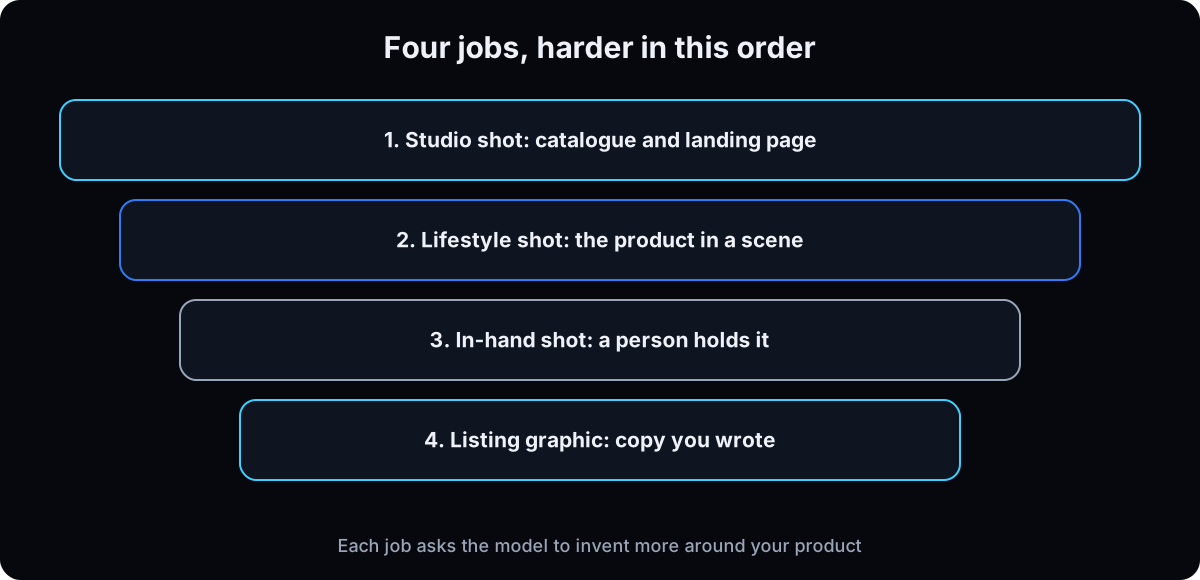 Most guides on this are built around whichever model shipped that month, so they age in a quarter. This one is built around the job: studio, lifestyle, in-hand, listing graphic. Each asks the model to invent more around a product it's seen from one side.
It's for anyone selling a physical product who won't book a photographer for a bottle. The tell is never the background. It's the product: a label that almost says your brand, a bottle the size of a thermos in a hand. If the tell is the whole image instead, start with making AI images look real.
npm install -g @higgsfield/cli, then higgsfield auth login), your phone, and the label text typed into a fileThe mental model
Upload the product photo, type make it look professional, and pick whichever model is being talked about this month.
You're directing a shoot. The model is an assistant who obeys instantly and has never seen the back of your product. Give it the angles, the label as text, and something to measure against. Pick a mode by the job, not by the model in the headline.
| Term | What it means |
|---|---|
| The label text | Every printed word, typed out. The one thing the model can't infer and the one thing customers read |
| The scale object | A hand, phone or coin in one reference shot, so the model knows how big the product is |
| The check | Label right, scale right, hands believable, same proportions in every panel |
At what point is this lying about the product?
Every burger in every commercial is styled to within an inch of its life. What makes a generated bottle on a generated counter different?
Nothing, as long as it's your bottle. The line isn't camera versus generated. It's whether the image claims something untrue about the product.
- Staging the real product is fine; inventing an attribute isn't. Better light and a nicer room is what set dressers have always done. A size, texture or component your product lacks gets found out when the box opens.
- Never let the model write the benefits. The most complete build I read let the model choose them, approved on camera. That's a language model writing claims onto a sales page.
- Never generate a result or a fake customer. A before-and-after is a regulatory event for a clinic under the FTC's health products guidance. A generated hand is staging; a generated person called a customer is a fabricated testimonial, which the FTC's endorsement guidance covers.
Selling something you haven't held? Order a real sample before the images go live. And write the label text and product facts yourself, in a file, before you generate. Then the model only decides how the light falls.
Four jobs, in order of difficulty
1. Do the reference shoot on your phone
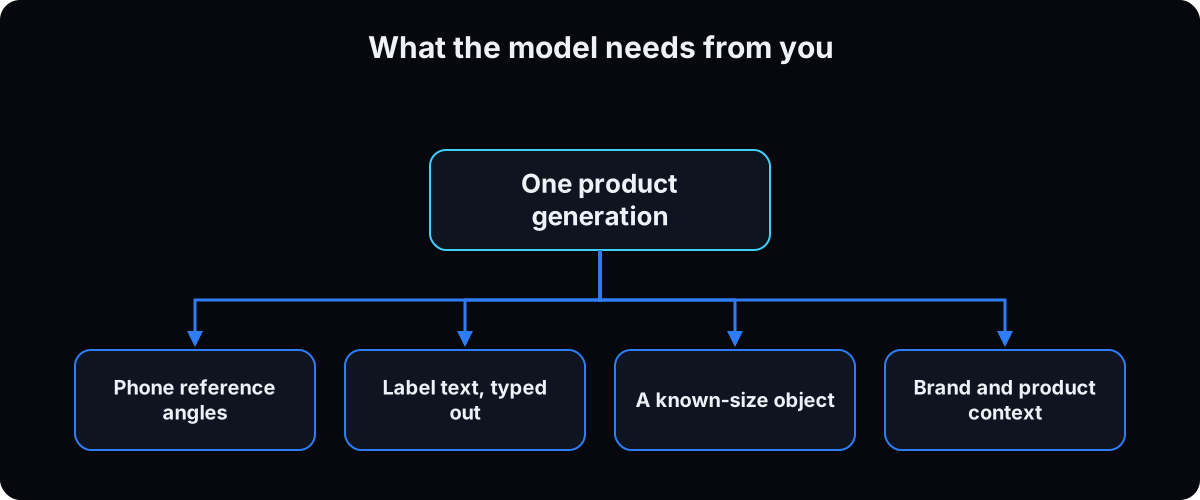 It takes 4 minutes. Plain background, window daylight, product filling the frame, no glare on the label. Shoot front, three quarter, and back if the label wraps, plus a close-up of any fine detail like an engraved button or foil edge. Vary the zoom.
Why a phone: you'll reshoot when something comes back wrong, and you can't do that on a photographer's invoice.
3 or 4 sharp photos beat 1, and 1 sharp beats 4 average. For edits on one image, see Nano Banana image editing. The brief below lists what to shoot.
2. Put a known-size object in one shot
Shoot one reference with the product in your hand, or next to a phone, coin, laptop or banknote. Type the size into the prompt too: palm sized, 30 millilitres.
Why: alone against a wall, the product gives no size cue, so the model guesses from similar products online, usually bigger. That's how a 30ml serum ends up held like a 500ml shampoo. It's the most common defect, and one photo fixes it better than any prompt.
3. Type the label out, word for word
Brand, product name, tagline, volume, directions, anything printed. Put it in a file and use it in every prompt.
Why: a nearly-right label is worse than none, and it reads as a low-quality brand. Large clear type reproduces well; small dense type doesn't, however good the model. Don't use shots of back-label micro-text where anyone can zoom.
4. Jobs 1 and 2: the studio shot, then the lifestyle shot
Both should work in 1 or 2 attempts. Studio is product_shot, for catalogue and landing page. Lifestyle is lifestyle_scene: on a counter, in a bag, at a gym.
The backend writes the photography prompt and sends it to GPT Image 2, so you supply intent, label and references. Dry-run first: --enhance-only shows the prompt it would submit, free.
Put label, packaging and size in --product_context and style in --brand_context, not in --prompt. Calling gpt_image_2 yourself with a hand-written prompt skips the enhancer and looks worse.
LABEL="$(cat products/serum/label.txt)"

# free dry run: see the assembled prompt before spending anything
higgsfield product-photoshoot create --mode product_shot \
  --prompt "clean catalog shot of the serum bottle" \
  --product_context "30ml amber glass dropper bottle, palm sized. Label reads exactly: $LABEL" \
  --brand_context "clinical, restrained, cool neutral palette" \
  --image products/serum/front.jpg --enhance-only

# then run it: same command, drop --enhance-only, add --image products/serum/3q.jpg --count 3

higgsfield product-photoshoot create --mode lifestyle_scene \
  --prompt "the serum on a bathroom counter in morning window light" \
  --product_context "30ml, palm sized. Label reads exactly: $LABEL" \
  --image products/serum/front.jpg --count 3
5. Job 3: the in-hand shot, where it gets hard
A person holding the product toward the camera is the most useful image and the one that fails most: the model invents a hand, body, scene and scale at once.
Use closeup_product_with_person. Lock the person first with a real photo of you or a trained identity (the method is in consistent AI characters). Pass size and label together, since the hand exposes scale errors. Check the hand first: fingers, grip, thumb.
higgsfield product-photoshoot create --mode closeup_product_with_person \
  --prompt "the attached person holding the serum toward the camera, label sharp and readable" \
  --product_context "30ml dropper bottle, palm sized, fits comfortably in one hand. Label reads exactly: $LABEL" \
  --image products/serum/front.jpg \
  --image products/serum/in-hand-size.jpg \
  --image refs/me-front.jpg \
  --count 3
6. When it stops improving, start over
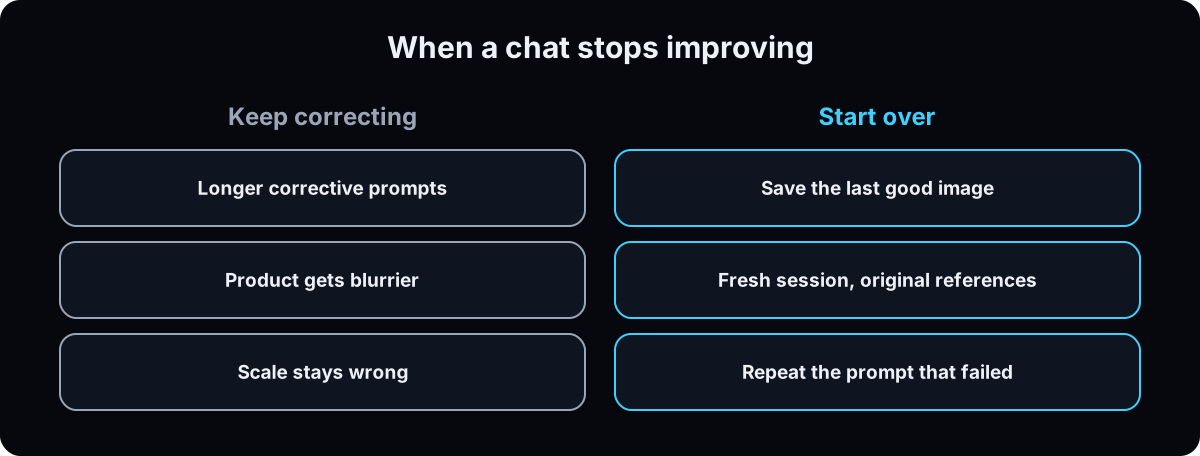 In my research, 2 independent sources reach this separately. A chat degrades: the longer it runs, the blurrier the product, until it hits a wall and gets worse however politely you ask.
Don't write a better corrective prompt. Download the last good image, open a fresh session, re-attach the original references, and repeat the prompt that failed. Wrong scale is almost always fixed this way.
The reverse holds: while a session is winning, stay in it and build the next graphic off the last good one.
7. Fix one defect at a time
Glow wrong, bottle too big, hand strange? Don't list all 3. Several fixes at once confuse the model and add a fourth problem. Fix the biggest, confirm, then the next. 2 rounds with no change means you've hit the wall from step 6.
8. Job 4: listing graphics, where the model must not write the copy
This makes a product page (and the panels double as AI generated ads), and almost nobody does it: features, benefits, instructions, size comparison, competitor comparison.
The prompt rule flips. Photo prompts stay short. Graphic prompts run long, because they hold copy the model must reproduce exactly. Write the features and benefits yourself. Add simple, modern and clean style, and mobile optimised. Check the product has the same proportions in every panel.
For a matched set, ad_creative_pack and social_carousel treat --count (1 to 10) as variants or slides and hold one style. There are 10 modes; pass a nonsense mode and the CLI lists them.
higgsfield product-photoshoot create --mode ad_creative_pack \
  --prompt "features graphic. simple, modern and clean style, mobile optimized. Exact on-image copy, top to bottom: 'Fragrance free' / 'Non comedogenic' / '30ml, 6 week supply'" \
  --product_context "30ml amber glass dropper bottle. Label reads exactly: $LABEL" \
  --image products/serum/front.jpg --count 4

# all ten modes, if you forget one
higgsfield product-photoshoot create --mode bogus 2>&1 | tail -1
9. Check against a list, and know its limits
Use a checklist: label correct, scale right, hands believable, same proportions in every panel, no glow from nowhere, no invented feature.
It's for screens, not print. Zoom in and there's noise a feed hides and a brochure won't. For print, generate at 4k, upscale, or shoot it.
For a cutout on the Higgsfield CLI, GPT Image 2 takes background: transparent and Seedream 5.0 Pro has remove_bg.
Price batches with higgsfield generate cost (same flags, spends nothing). When I ran it on 8 September 2026, GPT Image 2 was 0.5 credits at low quality 1k, 6.5 at its 2k default, 11 at 4k. Nano Banana Pro: 2 at 2k. Seedream 5.0 Pro: 3.
Starter prompts
Paste these as written. They are short on purpose, because the long ones drift.
I am about to photograph a product on my phone as reference material for AI product images. Product: [name, material, size, colour]. Tell me exactly which shots to take and why each one is needed. Cover: - which angles, and how many - which fine details need their own close-up - what to put in frame as a known-size object, and which shot it goes in - what to avoid: glare on the label, busy backgrounds, mixed light sources Then give me the file naming convention so my agent can find them later. Then list every word printed on the packaging that I need to type out, section by section, so I do not miss any.
A [features / benefits / instructions / size comparison / competitor comparison] graphic for the attached product. Simple, modern and clean style. Mobile optimized. The on-image copy, top to bottom, exactly and only this, do not add or rephrase: [line 1] [line 2] [line 3] The product must appear at the same proportions in every panel. Do not render it tall in one panel and wide in another. Do not invent any feature, benefit, ingredient, measurement or claim that is not in the copy above. Avoid apostrophes in large display type; write IS NOT rather than ISN'T.
If this happens, do this
Every one of these has happened to me or to someone I set this up for.
| Failure | Fix |
|---|---|
| The label reads like a different language | Type the label into --product_context. Micro-text on the back: don't use that shot where anyone can zoom |
| The bottle is thermos-sized in the hand | No scale reference. Add a photo with a hand or phone in frame, and state the size in words |
| It got worse the more you asked | The session decayed. Fresh session, original references, same prompt |
| The hand has 6 fingers | Regenerate. Lock the person first, and check the hand before anything else |
| The graphic lists benefits you never claimed | The model wrote them. Paste the copy verbatim and forbid additions |
| It looked soft and noisy in print | Screen yes, print no at default settings. Generate at 4k, upscale, or shoot it |
| The winter promo lost the winning shot | restyle the winner instead of regenerating from scratch |
The tools I use for this
| Tool | What it is for here | |
|---|---|---|
| Higgsfield | The product photoshoot command and its 10 mode templates, plus the raw models when you need a cutout. | Docs |
| GPT Image 2 | The model under every product mode, and the one with a transparent background option for real cutouts. | no link needed |
| Seedream 5.0 Pro | Up to 10 references and a first-class remove_bg flag. The other honest cutout route. | no link needed |
| Claude | Runs the routine, picks the mode by job, dry-runs the prompt, checks the label. | Open |
What I would tell you over coffee
- Keep the label text in a file, not in your head. You'll paste it into 40 prompts.
- In a chat app, pick the pro image model yourself before you start. A worse first result is often the fast model. (That's from the videos, not verified here, and app menus move.)
The free skill
The product routine as instructions for an agent: gather references, label text and size, pick the mode by job, dry-run with enhance-only, run with brand and product context in their own flags, and check label, scale, hands and panel proportions before returning URLs.
---
name: product-photos-no-photoshoot
description: Produces brand-quality product images from phone reference photos using Higgsfield's product photoshoot modes (studio, lifestyle, closeup with person, pin, hero banner, carousel, ad pack, virtual model, conceptual, restyle). Picks the mode by job, dry-runs with enhance-only, passes label text and size as product context, restarts decayed sessions from the original references, and checks label, scale, hands and panel proportions before delivery. Never writes product claims. Trigger on "make product photos", "product shot", "put my product in a scene", "someone holding my product", "ad images for my product".
---

# Product Photos Without A Photoshoot

You turn phone reference photos into finished product visuals. The model is a production assistant that has never seen the back of the product. Give it the angles, the label as text, the size, the person if there is one, and the job. Pick the mode; let the backend write the photography.

## Before you start
- Check `higgsfield account status`. If needed, ask the user to run `higgsfield auth login`.
- Ask for the reference set as files: front, three quarter, back if the label wraps, and a close-up of any fine detail. Glare, blur or clutter means a reshoot in window light.
- Ask for one photo next to a hand, phone or coin, and the size in words.
- Ask for the label text exactly as printed, stored in a file, and the product facts written by the user.
- Ask at most 4 short questions, with labelled options. Skip anything obvious.

## Pick the mode by job
| Job | Mode |
| --- | --- |
| Clean, catalogue, white, landing page | `product_shot` |
| In use, on a counter, in a gym, atmosphere | `lifestyle_scene` |
| Hands holding, applying, demonstrating | `closeup_product_with_person` |
| Vertical Pinterest pin | `moodboard_pin` |
| Wide web, email or campaign header | `hero_banner` |
| 3 to 10 connected slides | `social_carousel` |
| Coordinated static ad variants or listing graphics | `ad_creative_pack` |
| Worn or used by a model | `virtual_model_tryout` |
| Floating, splash, surreal, sculptural | `conceptual_product` |
| New season or aesthetic for an existing shot | `restyle` |

When 2 fit, the more specific wins: Pinterest on platform, banner on format, carousel on multi-slide, closeup on genre.

## Run it
```bash
LABEL="$(cat products/<product>/label.txt)"
higgsfield product-photoshoot create --mode <mode> \
  --prompt "<short intent line>" \
  --product_context "<size, material>. Label reads exactly: $LABEL" \
  --brand_context "<style, palette>" \
  --image <reference> [--image <more>] \
  --count 3 --enhance-only
```
- Run with `--enhance-only` first and show the user the assembled prompt. Then run for real without it.
- The modes submit to GPT Image 2 at its 2k default. Never call `gpt_image_2` directly with a hand-written prompt for product work; the mode enhancer is the quality.
- Count 3 to 5 for single shots. For `social_carousel` and `ad_creative_pack`, count is the number of slides or variants (1 to 10).
- Override `--aspect_ratio` only when the platform demands it.
- Before a batch, price it with `higgsfield generate cost` using the same flags.

## In-hand shots
Person first: a real photo of the user or a trained identity. Attach the person, the product and the size reference together, with size and label in product context. "Make the person hold the bottle" alone gives a blurred label and the wrong scale.

## Listing graphics
The on-image copy comes from the user, verbatim. Never write, choose or suggest a benefit, claim, ingredient or result. Ask for the product at the same proportions in every panel.

## When it stops improving
If 2 rounds don't move a defect, stop prompting. Take the last good image, open a fresh session, re-attach the ORIGINAL references (the size reference if the defect is scale), and repeat the prompt. Fix one defect at a time, biggest first.

## Check before delivery
Fail any output on: label not matching the file, wrong scale against the size reference, wrong hands, different proportions across panels, light from nowhere, an invented feature, plastic skin on a person, or an angle the platform can't use. Flag that outputs suit screens, not print, unless generated at 4k or upscaled.

## Deliver
URLs only, one per line, grouped by mode. No prompt text, no ids. One line each on what failed and why.

## House rules
- Inspiration images are rebuilt with the user's product, colours and details, never copied.
- Real logos come from real files, composited afterwards if the model gets them wrong.
- Never a fake patient, customer, result or clinician presented as real.
Want the whole product image library built for your offer?
Inside the AI CEO Lab, the Demand Engine module builds the product set, the ad pack and the landing page images together, so the offer looks like it costs what it costs.